 easywall
GitHub ↗
easywall
GitHub ↗
System & Network Settings
Two pages in the interface, and both decide something the rule pages cannot. System holds the acceptance window; Network holds the three dispositions that apply before any rule is consulted.
The acceptance window
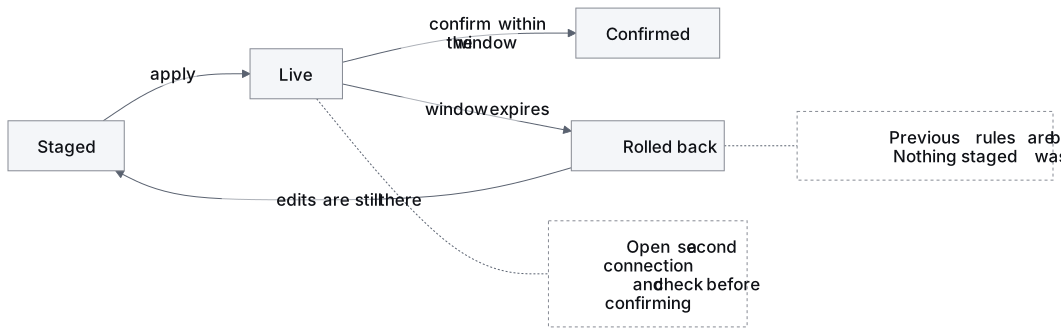
One idea: how long easywall waits for you to confirm before undoing what you just applied.
Enabled
On — what the installed easywall.toml sets |
Every apply starts the timer. Not confirming restores the previous rules |
| Off, and an absent key is off | An apply is final. There is no automatic way back |
Do not switch this off on a remote host. A rule that closes your own SSH port leaves console access as the only recovery. The setting exists for machines you can physically reach.
A file naming only
durationhas no window at all.enabledabsent reads as off, so the duration sets the length of something that never opens. The daemon has said so at every start since 2.20.1 — applies take effect immediately and nothing will undo them. Addenabled = trueand reload if you did not mean it.
Duration
10 to 3600 seconds. The field refuses anything outside that — too short is a lockout, too long is an exposure window.
| Suits | |
|---|---|
| 10–30 s | Almost nothing. You will not confirm in time on a slow link |
| 60–300 s | Most cases. Start at 120 |
| 300–3600 s | Automated pipelines, or a maintenance window with a known slow path |
Long enough to open a second connection and test what you changed; short enough that a lockout resolves itself before it costs you the afternoon.
Installation count
Off unless you switch it on, here or during the first-run wizard — the full request is in Counting installations.
The public demo at demo.easywall-project.org
reports too — it is switched on there through EASYWALL_WEB_TELEMETRY. So the
number means installations, including the demo, not installations somebody
runs.
The Network page
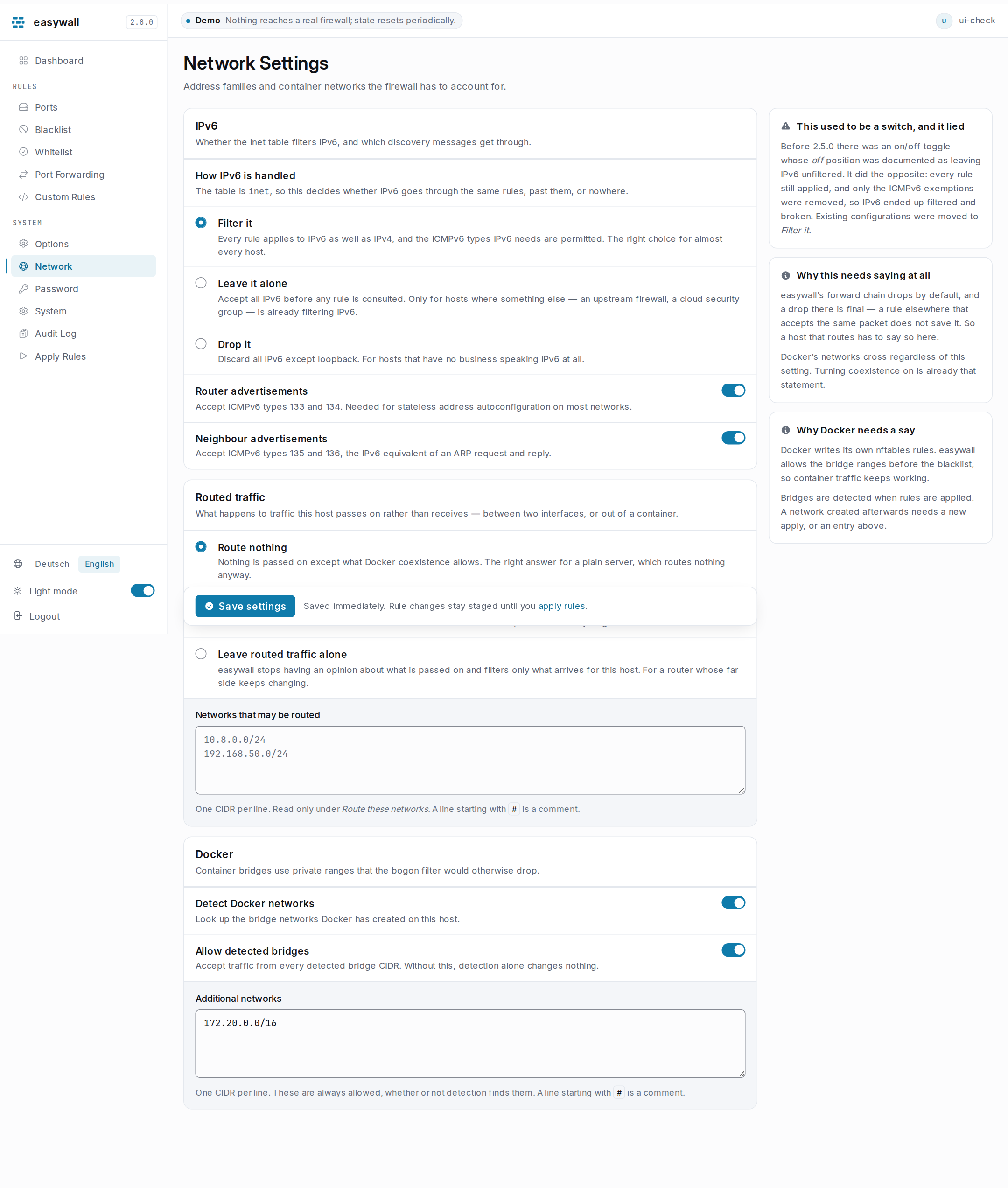
Three dispositions, all of them settled before any rule on any other page is consulted.
| Card | Decides | Detail |
|---|---|---|
| IPv6 | whether IPv6 goes through the same rules, past them, or nowhere | [ipv6] |
| Routed traffic | what may cross the forward chain — nothing, a named list, or everything |
[routing] |
| Docker | which container networks are allowed, on input and forward | Docker coexistence |
The two lists are not the same list. Docker’s networks cross the
forwardchain whatever the routing mode says, because switching coexistence on is already that statement.routing.networksis for everything that routes and is not Docker — a VPN gateway, a second interface.
Both take one CIDR network per line — 192.168.1.0/24, not 192.168.1.5 — and,
like the address lists, treat a blank line or a line beginning with # as a comment.
An entry that is not a network is named on save rather than stored. The same
check runs when the file is read, so a hand-edited network cannot reach the
kernel as nothing.
Saving
A setting is saved to the daemon’s configuration immediately and reaches the
kernel at the next apply. Since
2.10 that counts as a pending change: the dashboard’s Unapplied changes chip
includes it and the apply screen lists it by its key, ipv6.mode filter → block.
A toast confirms the save itself. No restart, and the Save button stays for
browsers with JavaScript disabled. Both pages behave the same way, as does
options.
Editing the file directly works too. SIGHUP reloads [firewall],
[acceptance], [ipv6], [docker], [routing] and [usage] without dropping
the socket. The paths are bound at startup, and a change to one is logged and
ignored until a restart. A file that does not parse or does not validate is
refused and the running configuration stays — a typo must not disarm anything.
[acceptance]
enabled  = true
duration = 120   # seconds
sudo systemctl reload easywall-core # or: kill -HUP $(pidof easywall-core)
This did not work before 2.5.0. Nothing handled
SIGHUP, and the default disposition for an unhandled one is to terminate — so following this page shut the core down instead of reloading it.
When it does not behave
| Symptom | Cause |
|---|---|
| The apply used the old duration | A running timer keeps the value it started with. The next apply reads the current one |
| The window expired before you could confirm | Raise the duration. The rollback is in the audit log as apply_rolledback with detail timeout |
| The field rejects a value | Outside 10–3600 |